Ore Factory Squad Save File Location & Steam Cloud Backup
Open the Windows save file location, copy the whole Saves folder, then resolve a Steam Cloud conflict without deleting or overwriting first.
Quick answer
On Windows, close the game and paste this path into File Explorer first:
%USERPROFILE%\AppData\LocalLow\threeW\Ore Factory Squad\Saves
Copy the whole Saves folder to a separate dated backup location before choosing or replacing anything. If that exact folder is absent, inspect the parent Ore Factory Squad folder without deleting files. Only after the copy exists should you compare the Steam Cloud prompt and timestamps. Do not delete files first, automatically overwrite either side, or permanently disable Steam Cloud as a generic fix.
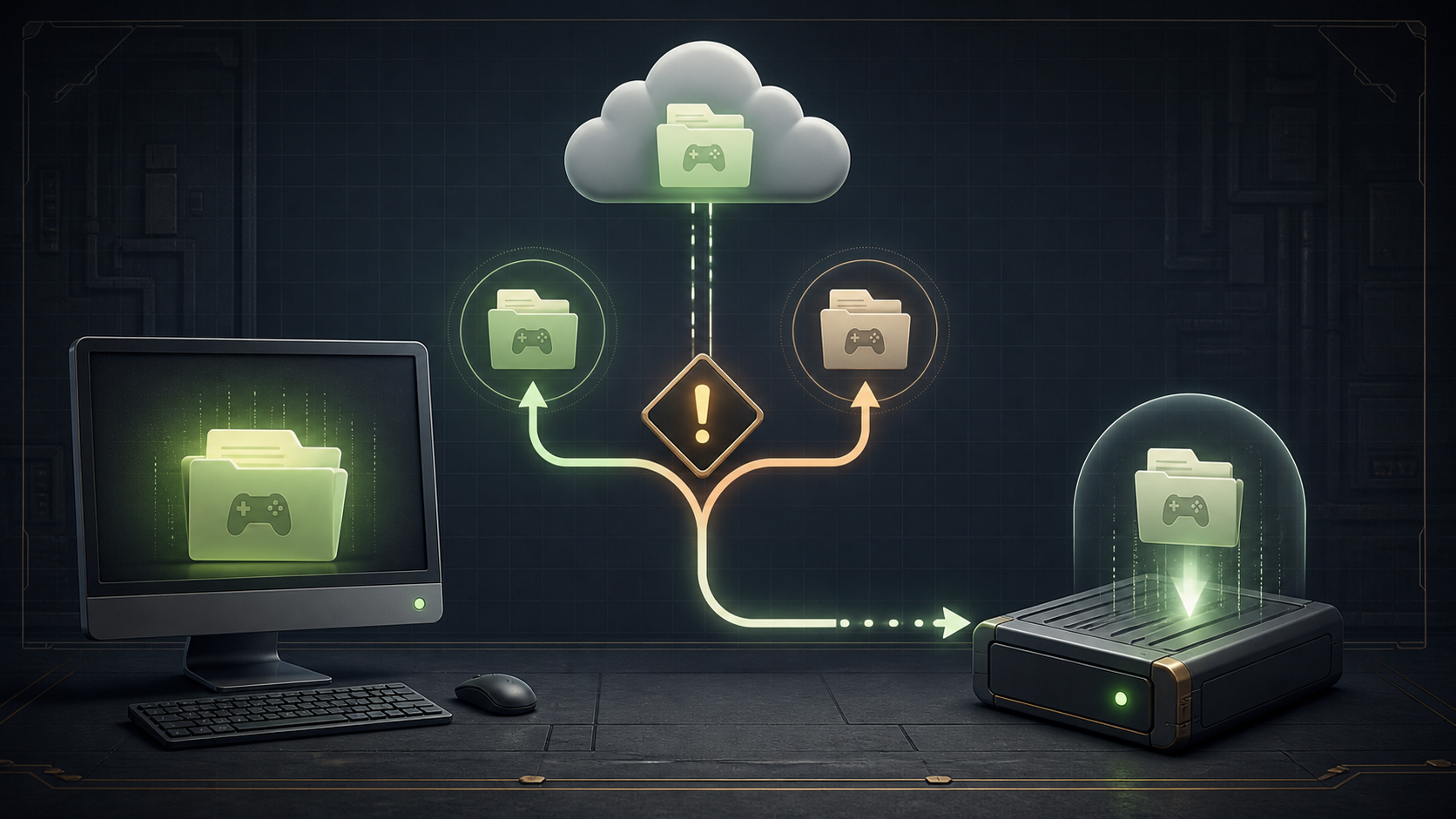
Non-destructive conflict sequence
- Stop further writes. Do not load, save, delete, sync-toggle, or overwrite repeatedly while the conflict is unresolved.
- Record the prompt. Capture the exact conflict or sync wording, the local time, the most recent known good play session, and whether the warning appeared before or after a save.
- Exit the game. Close it before copying any local data; do not treat an open session as a stable backup source.
- Open the likely Windows save folder. Paste
%USERPROFILE%\AppData\LocalLow\threeW\Ore Factory Squad\Savesinto File Explorer. If it is missing, inspect the parentOre Factory Squadfolder and stop before changing anything. - Copy the whole Saves folder. Make a dated copy in a separate location without deleting, moving, or renaming the original.
- Restart only after the copy. The official v1.0.9 announcement gives a limited restart step for a sync warning. If a conflict is shown, it says to choose the newest save; apply that only after you have preserved the local copy and can identify which timestamps you are comparing.
- Reassess local and cloud state. Check the prompt, time, and the state you can actually see. If they do not agree, stop rather than attempting repeated overrides.
This sequence protects your fallback copy. It cannot decide which save contains more progress, so compare the visible timestamps and the last session you recognize.
What changed in v1.0.9
The official v1.0.9 announcement says Steam Cloud was re-enabled, dig-data storage changed in v1.0.8, and the Backup folder is no longer uploaded to Cloud Save. That is why our rule is simple: preserve your own dated copy before choosing either side of a conflict.
If the folder is missing
- Open
%USERPROFILE%\AppData\LocalLow\threeW\Ore Factory Squad. - Look for the
Savessubfolder without moving or renaming anything. - If the game folder is also missing, stop and confirm that you are using the same Windows account that played the game.
- Do not create an empty replacement folder and do not paste somebody else's save over your own.
The Windows location comes from SteamDB's recorded WinAppDataLocalLow root plus a Steam Community report naming the Saves subfolder. Treat it as the first place to look, not as permission to delete or overwrite files.
If the prompt returns after the restart
- Re-read the prompt and compare it with the time record you made before exiting.
- Keep the dated local copy intact; do not replace it with a new snapshot until the state is understood.
- Follow the official conflict choice only when you can identify the newer save from the actual prompt and timestamps.
- If the state remains ambiguous, collect the game version, platform, screenshots of the prompt, and the sequence of events for support rather than trying destructive fixes.
Our recommendation stays the same if the warning returns: keep the dated copy, compare the two visible states, and stop if you cannot identify the newer good save. Never make “always choose Cloud,” “always choose Local,” or “disable Cloud forever” your default rule.
Related guides
- Start broad issue routing at Troubleshooting.
- If the save is listed but opens at the beginning, use the ground-zero save recovery guide.
- If the game does not reach the menu, use the safe launch-failure order.
- Keep version boundaries visible in the roadmap and update tracker.
- Browse the full Ore Factory Squad guide index.
- Use the Mini Excavator guide for the separate v1.0.9 vehicle-storage mechanic source.
Sources
- Official v1.0.9 Steam Cloud announcement
- SteamDB Cloud UFS record for Ore Factory Squad — Windows root reference
- Steam Community
Savesobservation — subfolder report
These sources point you to the likely folder and explain the v1.0.9 conflict behavior. They cannot choose the correct save for you, which is why the dated local copy comes first.