Ore Factory Squad Troubleshooting
Start with the visible symptom, isolate one handoff, and apply the narrow guide instead of rebuilding the whole save.
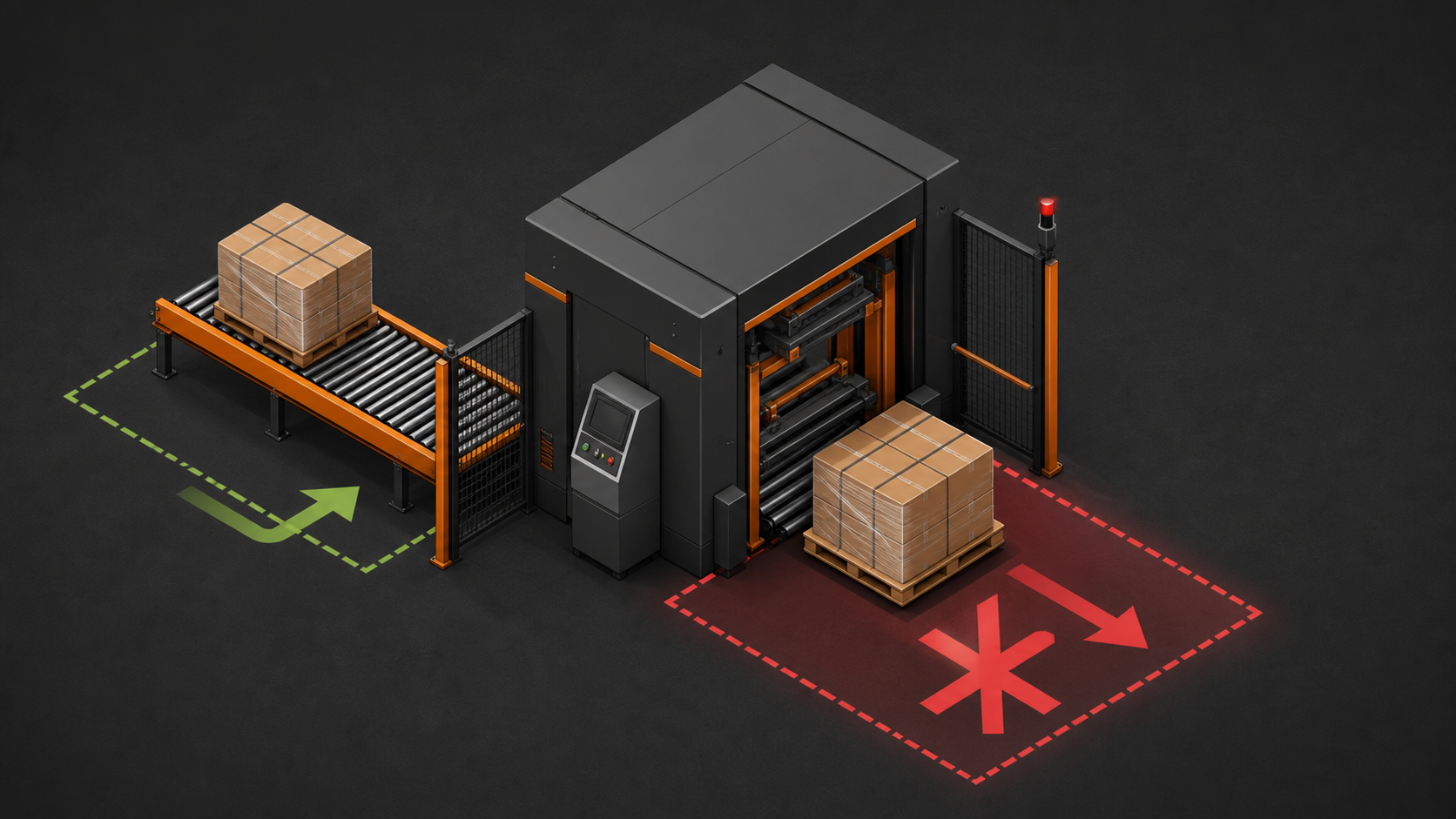
START HERE
First three checks
- Update to the v1.1.1 hotfix before rebuilding anything.
- Find the first place where the expected item, worker, vehicle, or UI state stops changing.
- Retest that one handoff with free input, free output, and a short clear route.
Fix the first failed handoff. Changing five things at once only hides the cause.
Choose the visible symptom
Tutorial freezes or will not advance
v1.0.1 fixed a controller tutorial softlock and an issue that opened the wrong app during the Stock Sell step. v1.0.9 also documents Tutorial Skip after a tutorial has already been completed in a previous save; that is an eligibility condition, not a recovery for every blocked objective.
- Update the game and reload the save once.
- Read the exact active objective and complete only that interaction.
- Use Tutorial Skip only if the stated previous-save condition is true.
- If using a controller, test the same objective with keyboard and mouse to identify an input-specific problem.
- Record the objective text, input device, version, and last successful action before reporting it.
Belts do not connect, snap, or sort
v1.0.5 fixed belt types not connecting correctly to machine sockets and added Smart Filters to Splitter Belts and Pallet Drop Zones. v1.0.9 adds raised Merge, Splitter, and turn pieces for elevated belts; it does not publish a universal clearance rule.
- Check the machine input or output socket and belt direction.
- Use Hammer or Belt Mode to read the visible flow direction and connection state named in the official v1.0.6 notes.
- Remove unrelated merges and test one source, one belt, and one destination. German UI/search discussions may call the Merge Belt Zusammenführungsband.
- Verify the Smart Filter on the exact output branch or Drop Zone slot.
- For raised pieces, retest the merge, splitter, or turn one at a time before rebuilding the route.
- Keep the destination free before reconnecting the full line.
Pallet Packer, pallet, or robot is stuck
v1.0.5 fixed robots and pallets becoming stuck around or inside the Pallet Packing Machine. v1.0.6 also fixed a robot sometimes failing to pick a pallet back up for loading after packaging. v1.0.9 adds Storage versus Packaging and Delivery priority for Warehouse Robots, names cancellation of the current pallet task, and fixes a Pallet Dispenser issue that could spawn pallets inside each other. A physical blockage or wrong filter can still reproduce a similar symptom.
- Confirm the selected accepted contract.
- Check that the input is the exact finished product requested.
- Clear both Contract Output and Excess Output.
- Move unrelated pallets, vehicles, and robots away from the machine.
- Check the exact Drop Zone filter and Robot priority.
- Cancel the current pallet task when that named v1.0.9 recovery applies, then retest one pallet before restoring automation.
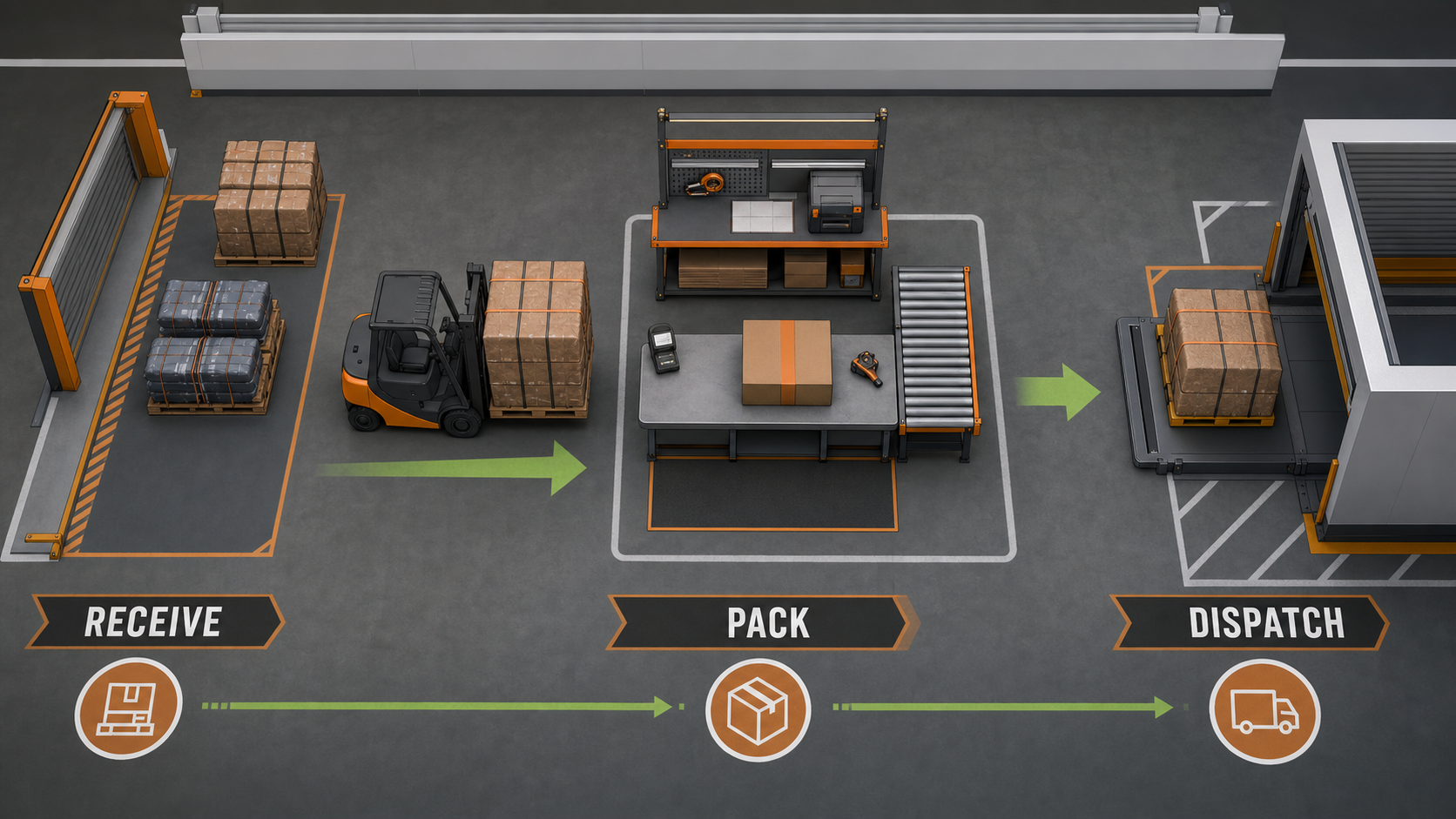
Warehouse says full, but the expected material is missing
Do not delete the warehouse or the save. Follow one item through five places and correct the first handoff where it stops.
- Check every marked storage area, including storage hidden behind machines or pallets.
- Read the filter on the exact machine output and Pallet Drop Zone.
- Inspect the producing machine output for a blockage.
- Read nearby pallet labels and inspect partial pallets before assuming the item vanished.
- Check the Warehouse Robot status and whether its priority is Storage or Packaging and Delivery. Clear one destination, then retest one item.
Storage visibility, a wrong filter, a blocked output, a pallet, or the Robot handoff can be the first stopped point. Change only that point and run the one-item test again.
Open the Pallet Dispenser and Warehouse Robot checklist or open the Stock Sell storage guideHandler will not unload or drop crates
Check v1.0.5 first because it fixed Handlers getting stuck near Miner vehicles. Then verify that the worker is locally assigned, the target still exists, the vehicle is reachable, and the destination is not full.
Open the employee and Handler checklistMining Lift ladder is blocked
Inspect the Lift Head, Extensions, ladder clearance, and the path at each depth. Do not assume another Lift increases throughput until the first route is aligned and accessible.
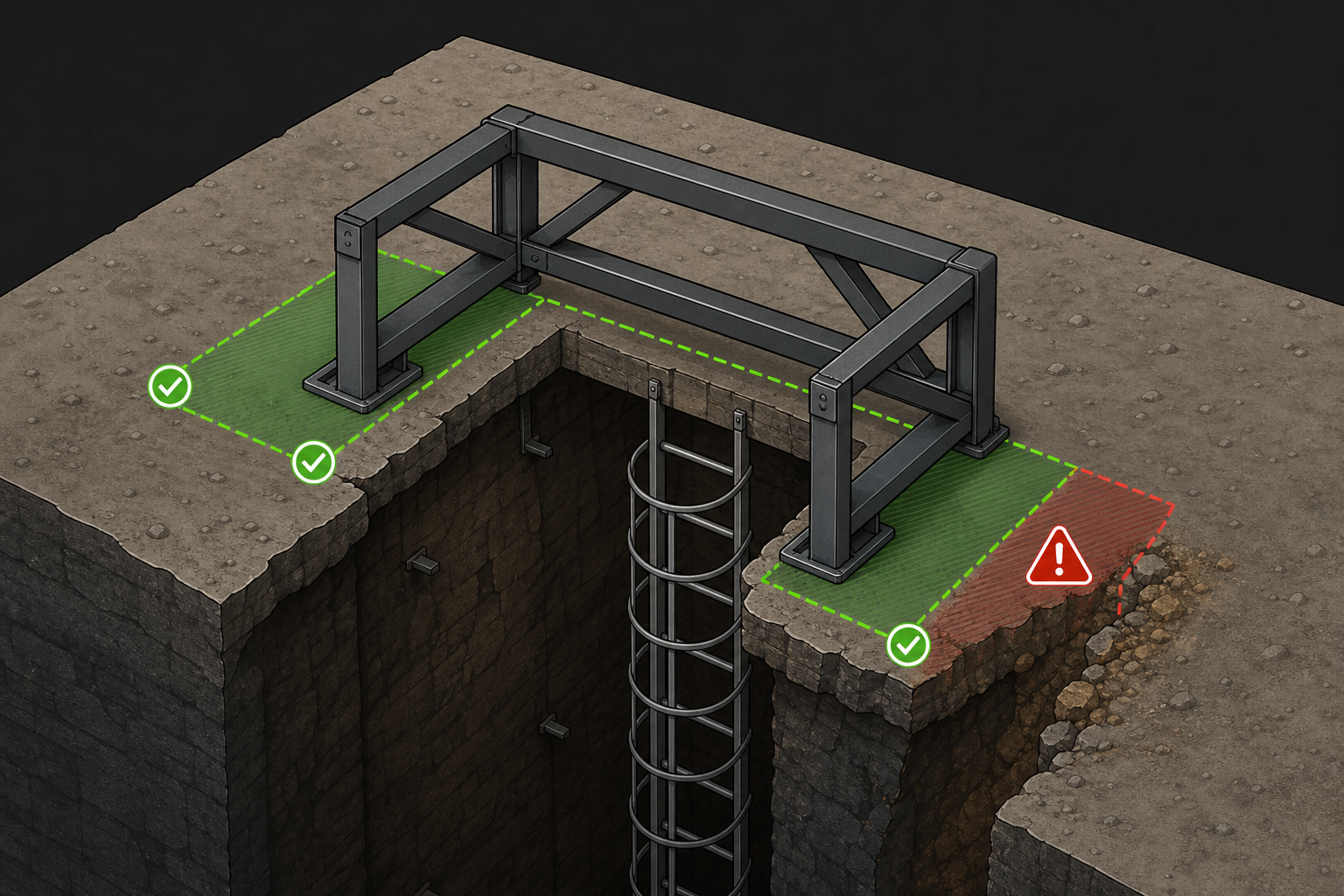
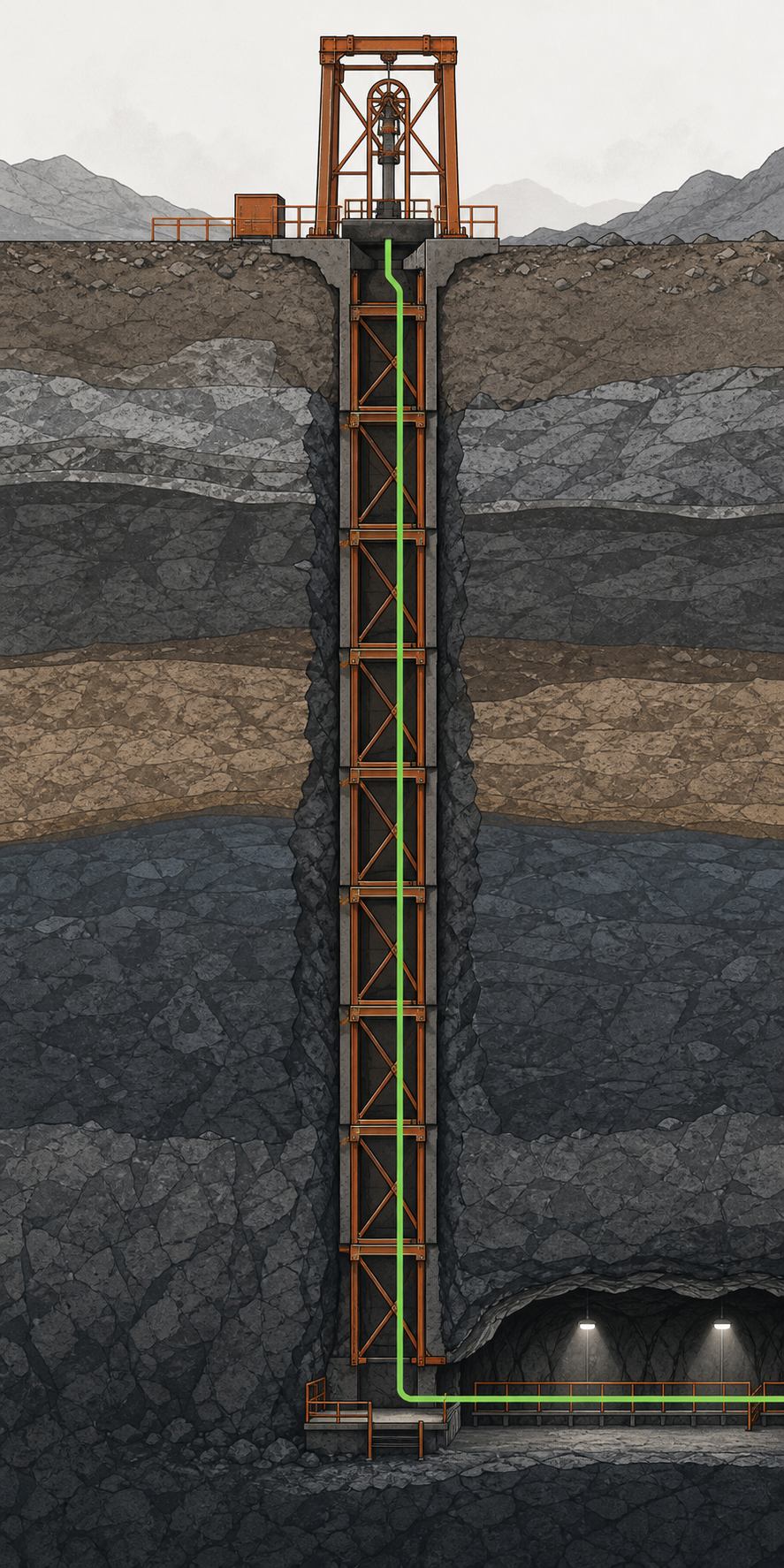
Both diagrams were generated for OreFactoryGuide from an abstract placement and alignment brief. The underlying mechanic remains cross-checked against the documented Mining Lift test.
Open the Mining Lift and ladder guideOil Pipe, Tanker, or Oil Tank does not hand off
For the released Masters of Oil chain, isolate the first stopped stage: cleaned reserve, continuous pipe run, Pipe Head state, full Tanker, Tanker-to-Oil-Tank transfer, then the first downstream machine. v1.1.1 specifically updates oil-pipe on and off behavior, Tanker-to-Tank timing, full-Tanker behavior, and reserve feedback.
- Confirm the reserve was found, cleaned, and is not empty.
- Trace one continuous Pipe Head run instead of changing the entire route.
- Read the turn-on state and Tanker state before adding another vehicle.
- At the factory, confirm one Tanker-to-Oil-Tank transfer before placing a Refinery or Processor.
- Retest the smallest affected handoff after updating to v1.1.1.
The hotfix does not publish a universal pipe length, reserve amount, vehicle capacity, or transfer speed.
Open Pipe Head extraction fixes or open the Tanker and Oil Tank transfer guideExcavator feels stuck or awkward
v1.0.9 lists ISO and SAE control schemes, joystick keybindings, rear-storage access, a larger digging area, unlimited swing rotation, and fewer getting-stuck cases. Those notes do not set a capacity, route, or guarantee for every terrain or save.
- Confirm whether ISO or SAE is selected before changing construction or bindings.
- Try rear storage access only after the immediate route is clear.
- Retest one small dig area and one turn before extending a work pattern.
- Record control scheme, input device, terrain, and version if the stuck case repeats.
Start with the Mini Excavator controls and storage guide.
If the problem started only after adding a plugin, disable it and follow the mods compatibility checklist.
Forklift, vehicle, Hammer, or Belt Mode input does not respond
Start with a short, flat, empty route. Vehicle obstruction, terrain contact, controller axis, keybinding, or co-op permissions can produce the same symptom.
- Move unrelated pallets and vehicles away, then retest on a short, flat, clear route.
- Test the same action with one input device at a time so controller and keyboard signals do not conflict.
- Check the current binding and axis direction before replacing the vehicle or changing the factory.
- If Hammer or Belt Mode fails only in co-op, compare host and guest permissions, input device, and the exact object.
- Capture the game version, vehicle, terrain, and last responsive action if the symptom repeats.
Keep the test small and change one condition at a time.
Product is missing from Stock Sell
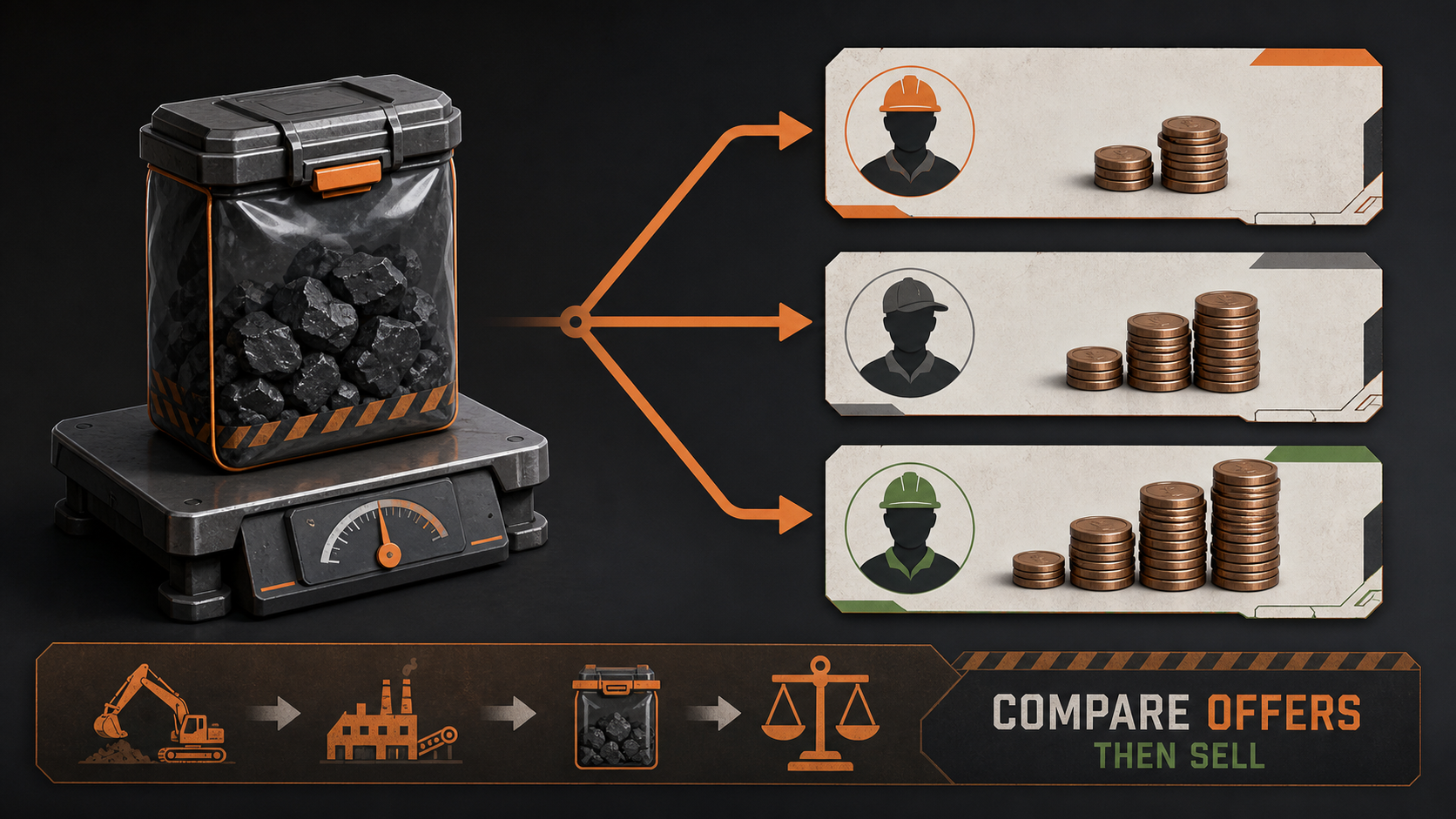
Make sure it is a finished product, place its pallet in marked warehouse storage, then refresh the Stock Sell view. v1.0.5 added an option to show only items currently in stock.
Friend cannot join co-op
v1.0.5 restored Steam friend joining, protected 10-digit Lobby Codes, invite-only room visibility, and Text Chat. Confirm both players are on the same current version before retrying an invite.
Open the co-op invite and Lobby Code guideSteam Cloud conflict or missing progress
v1.0.9 re-enables Steam Cloud and warns that prior cloud data can conflict with a newer local save. The announcement recommends restarting the game when a Steam Cloud synchronization warning appears; it does not say that every conflict is safe to overwrite automatically.
- Pause before choosing between cloud and local state.
- Record which save appears newer and preserve any available backup before changing state.
- Restart the game and let synchronization begin.
- If the conflict repeats, capture the version and exact prompt rather than assuming the newest visible timestamp is authoritative.
Crash, deep freeze, or stutter
The launch patches included multiple crash and performance fixes. If the issue persists after updating to v1.0.9:
- identify whether the trigger is a load, property, machine, co-op action, or graphics setting;
- repeat only the smallest safe sequence that causes it;
- record hardware, driver, version, save type, and exact trigger;
- use the developer's pinned bug-report instructions rather than describing only the final freeze.
Current focused recovery guides
When not to rebuild
Do not delete a property, sell a machine chain, or replace a complete factory until a one-input, one-output test proves the structure itself is wrong. Patch changes and blocked destinations can imitate a bad layout.