Ore Factory Squad Redstone Customs: Style & Plate Settings
Use the open customization screen to select a wheel style, check Style Cost, and apply plate text and color without assuming fixed prices or performance gains.
On this page
Oil & maintenance
Choose the appearance, read the cost in your save and confirm; for a plate, enter text and color before Apply.
- Bring / prerequisite
- The customization screen already open
- Check this UI first
- Selected Style, Style Cost or Plate Text
- Move on when
- The selected appearance can be checked after confirmation.
The guide does not establish a garage-entry button, performance bonus or universal style price.
Change a style once the customization screen is open
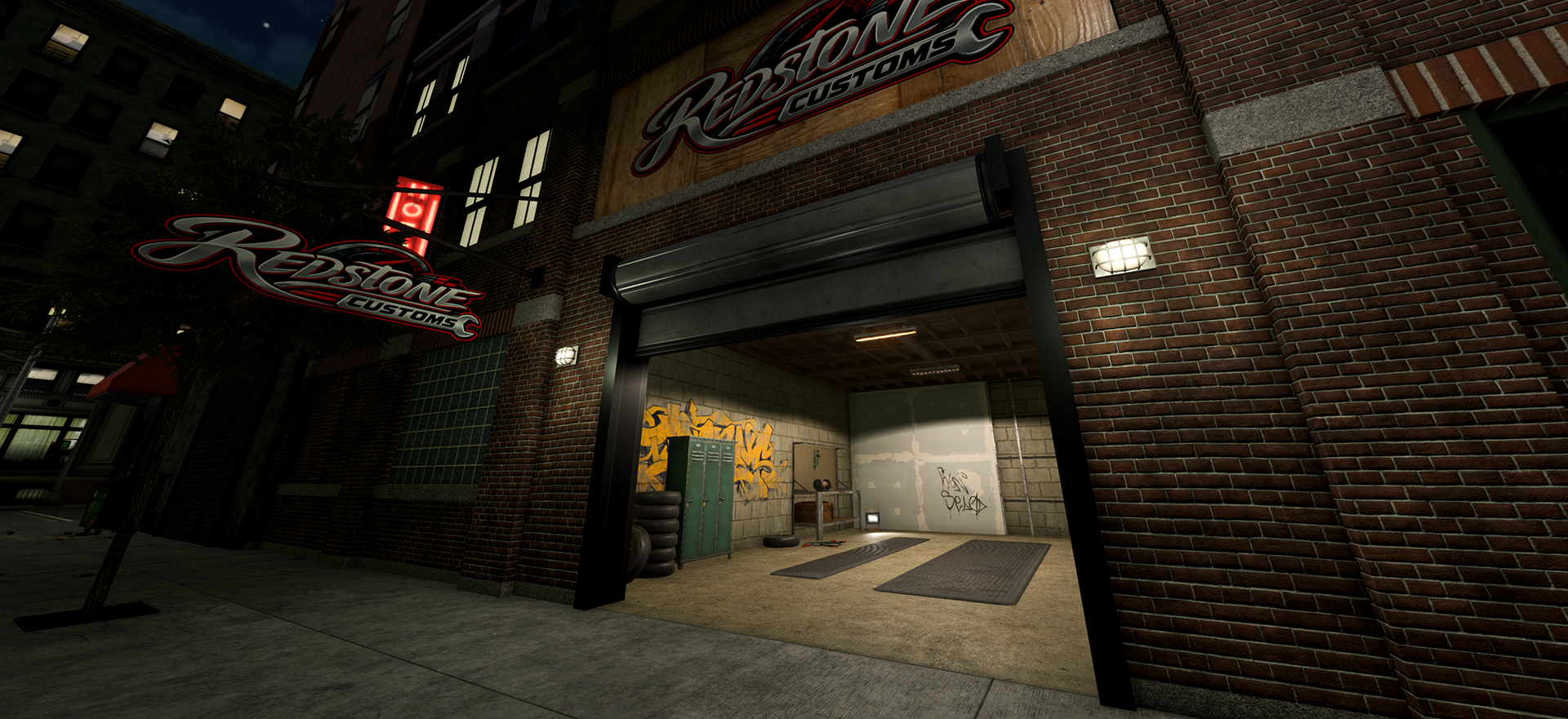
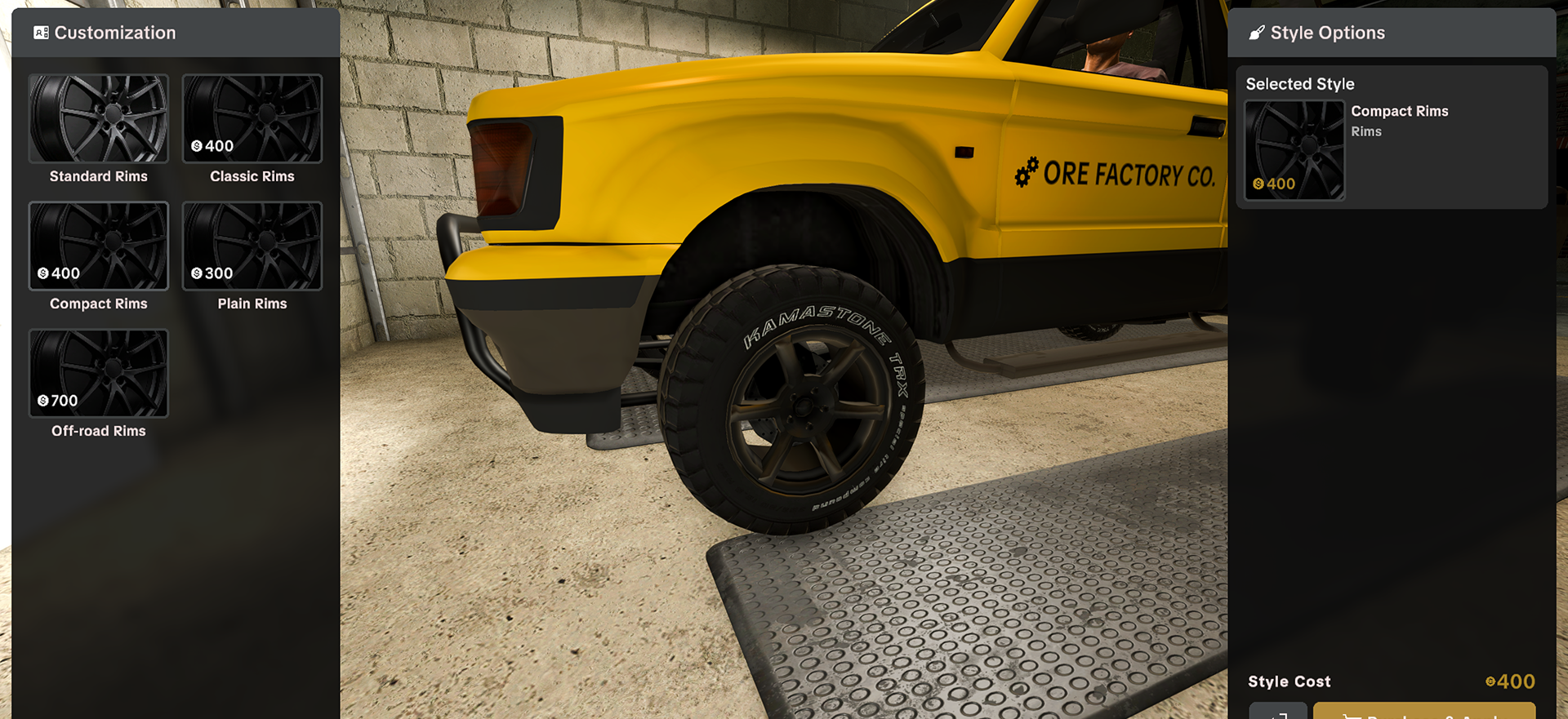
Start with the Redstone Customs customization screen already open. Choose an appearance item on the left, then check Selected Style and the Style Cost shown in your save before confirming. For a plate, choose Plate Text, enter the text and select Primary Color, then use Apply.
Select a wheel style and check the cost
View the wheel controls at full size
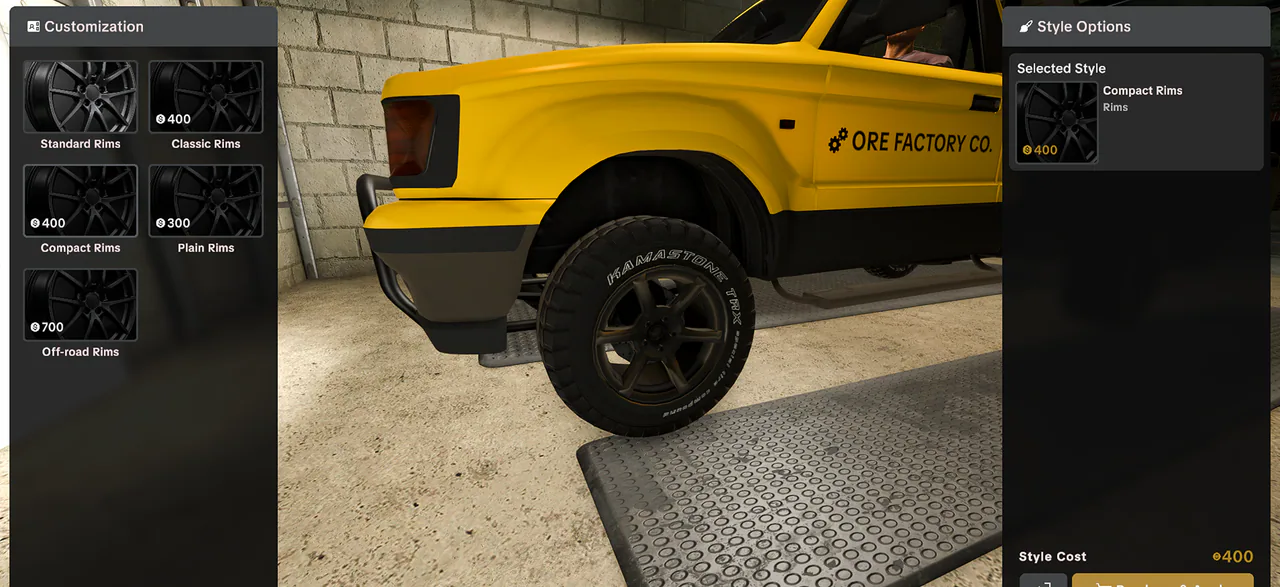
- Choose a displayed option in Customization, such as a rim style.
- Check Selected Style on the right to confirm the item you selected.
- Read Style Cost before using the screen’s confirmation control.
Set plate text and color
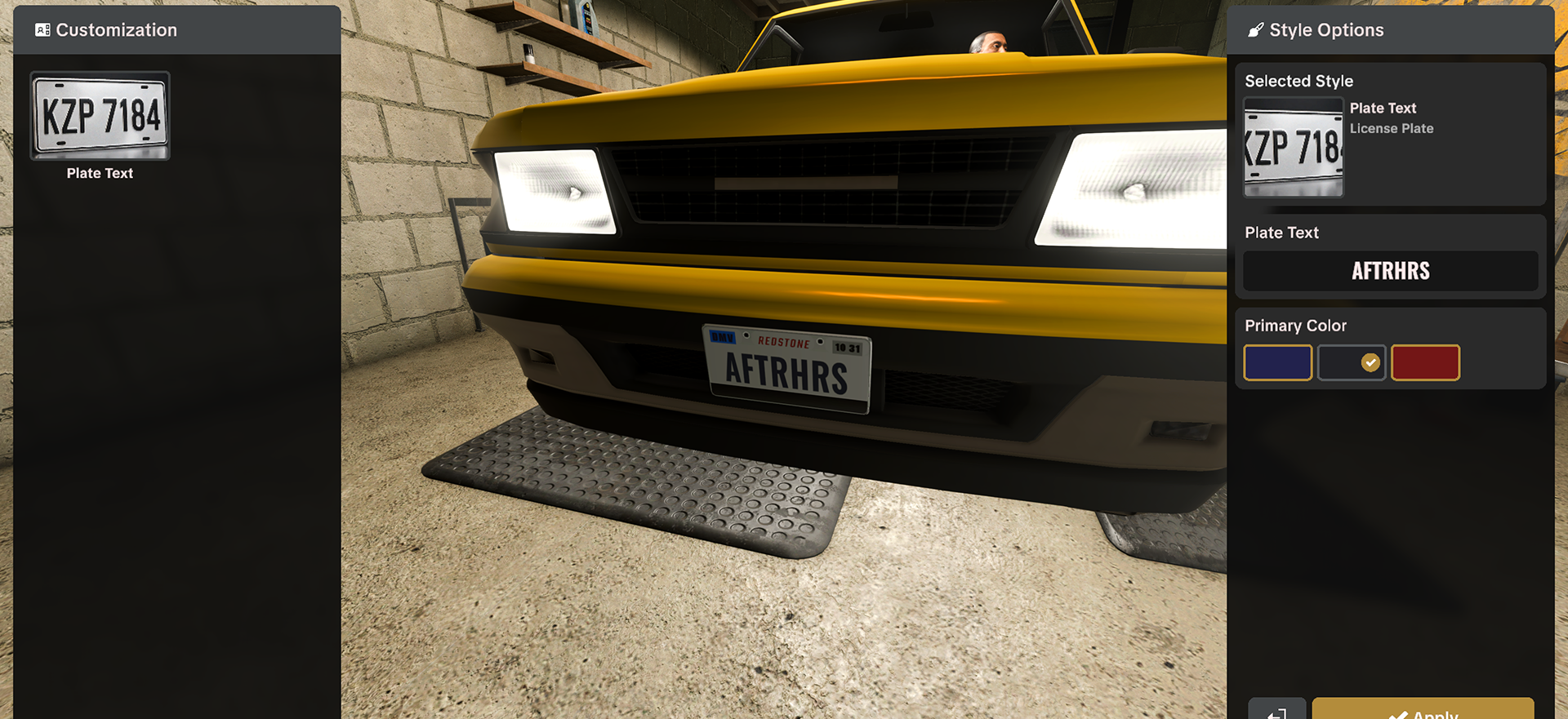
View the plate controls at full size
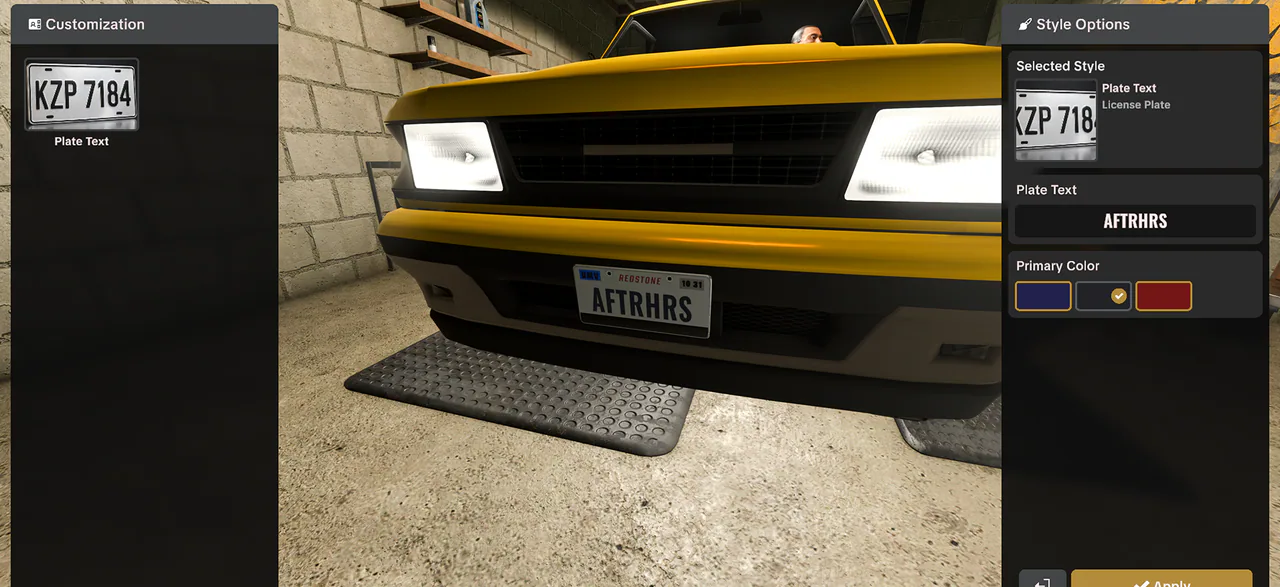
- Choose Plate Text in the left Customization panel.
- Enter your chosen text in the Plate Text field on the right.
- Select an available Primary Color and check the vehicle preview.
- Use Apply to confirm the displayed plate setup.
Keep appearance spending separate from a factory fix
If a vehicle is stuck or goods cannot reach their destination, use the vehicle rescue and obstruction checks or Tanker Truck transfer guide. Cosmetic changes do not replace those tasks. For a purchase decision, first check the upgrade order and your Statistics spending categories.
Source and version
Official After Hours v1.1.2 announcement, October 1, 2026, with the Redstone Customs exterior, wheel-style and plate-text images. Read October 17, 2026. The guide covers the displayed customization interface. A complete drive-to-shop and entrance route, fixed prices, universal vehicle compatibility, performance changes, plate limits and refund or undo rules have not been verified.